Step-by-step guide
From your invite to your first applications, and asking for more emails. Each picture shows the real screen, with what to click outlined in red.
0Before you start
UAE Direct Apply sends your CV to UAE companies from your own Gmail, one by one during working hours. Replies come straight to your inbox. Have these ready:
- Your invite email from UAE Direct Apply.
- The Gmail address you want to apply from. Applications go out from it, and companies reply to it.
- Your WhatsApp number.
- Your CV as a PDF, up to 5 MB.
- A computer: this guide shows the computer screens.
Important
Your CV must show the same name, email and WhatsApp number as your account. A CV that doesn't match is refused.
Good to know
UAE Direct Apply only gets permission to send from your Gmail. It can never read, delete or see your emails.
Each company receives your application once only. Emails go out Monday to Friday, 8 am to 6 pm UAE time.
1Open your invite
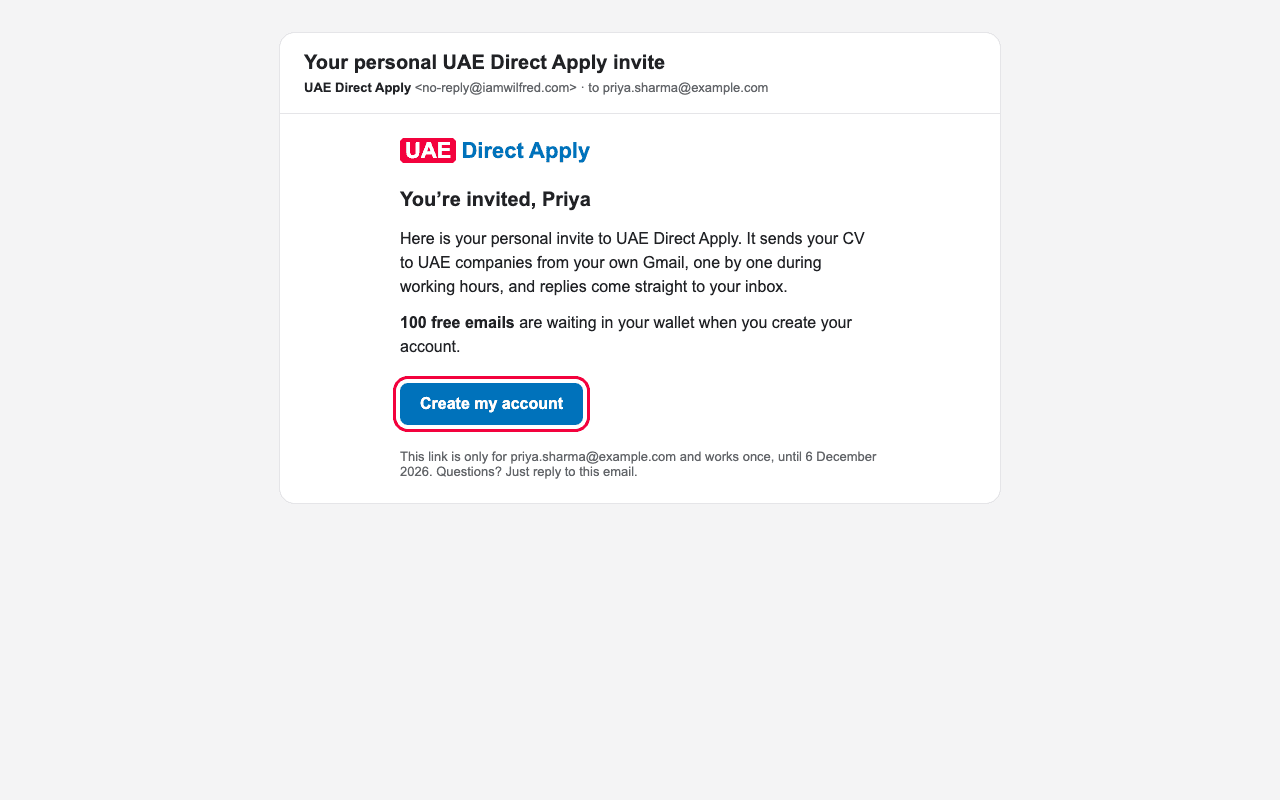
Find the email “Your personal UAE Direct Apply invite” from no-reply@iamwilfred.com. If it isn't in your inbox, look in Spam or Promotions. Click Create my account.
Important
The link works only for the email address it was sent to, only once, and until the date shown in the email.
Link expired or not working? Reply to the invite email and ask for a new one.
2Create your account
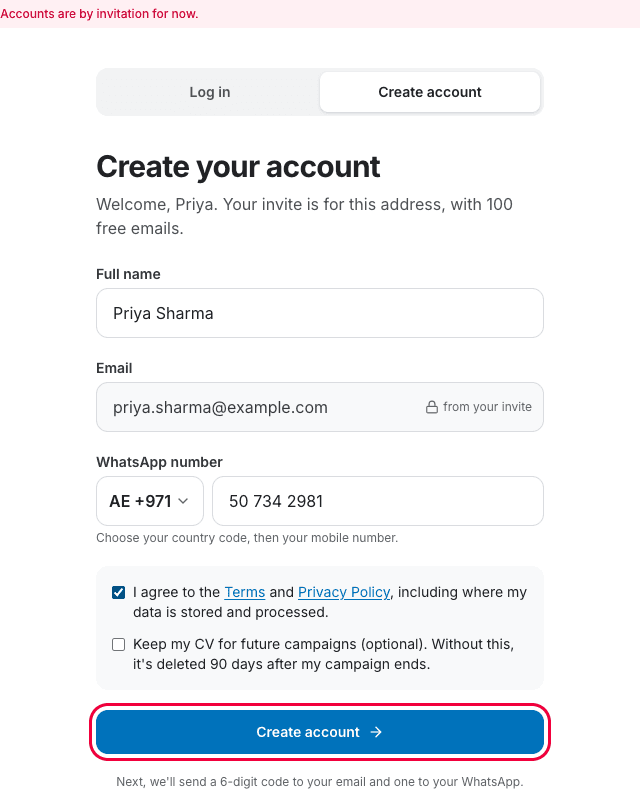
- Full name: already filled in from your invite. Make sure it is exactly as on your CV.
- Email: fixed to your invited address, so you can't change it here.
- WhatsApp number: choose your country code (UAE +971 is already chosen), then type your number without the first 0, e.g. 50 123 4567.
- Tick I agree to the Terms and Privacy Policy. The second box is optional: tick it to keep your CV for future campaigns.
- Click Create account.
Good to know
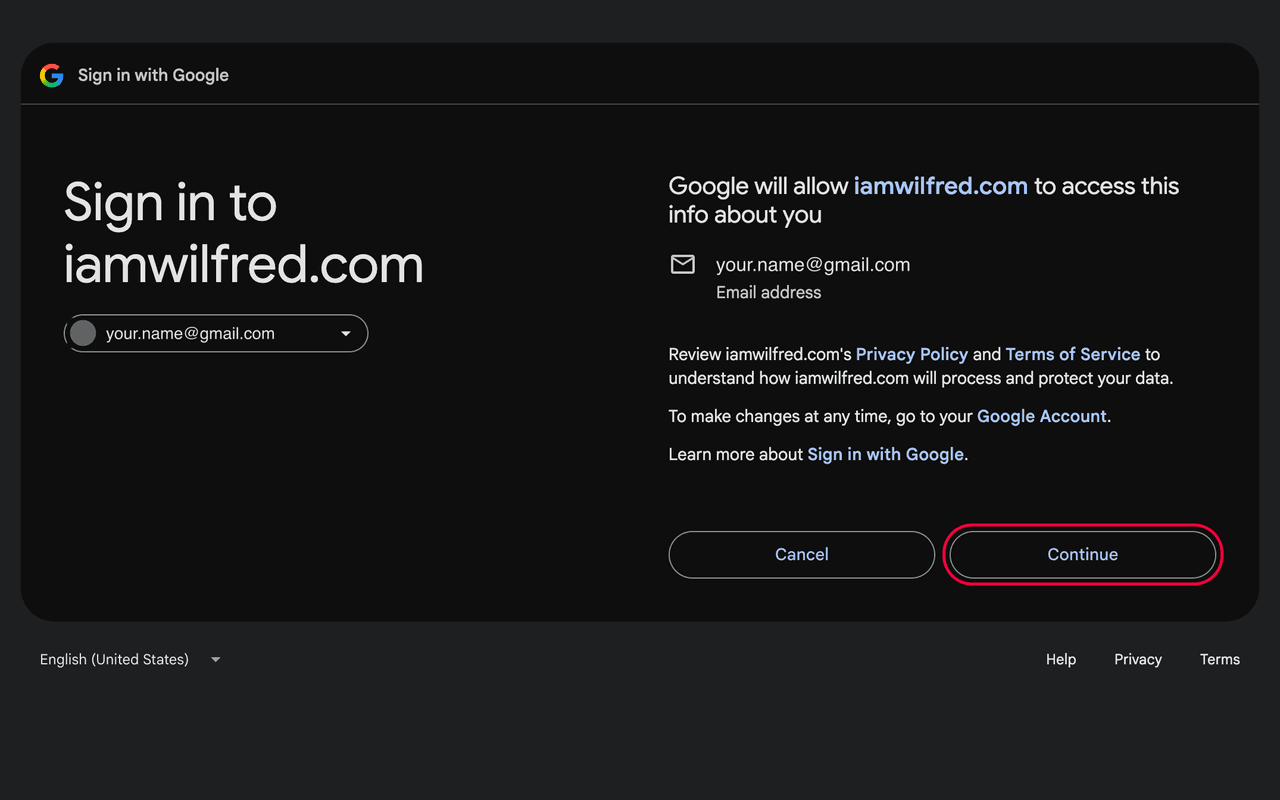
Prefer Google? Click Continue with Google lower on the same page, and choose the same Gmail address your invite was sent to. Any other Google account is refused. Google shows our web address, iamwilfred.com: click Continue. You'll then add your name and WhatsApp number.
Important
One account per WhatsApp number.
Your name and WhatsApp number can't be changed after your first campaign, because they must match your CV.
3Enter your two codes
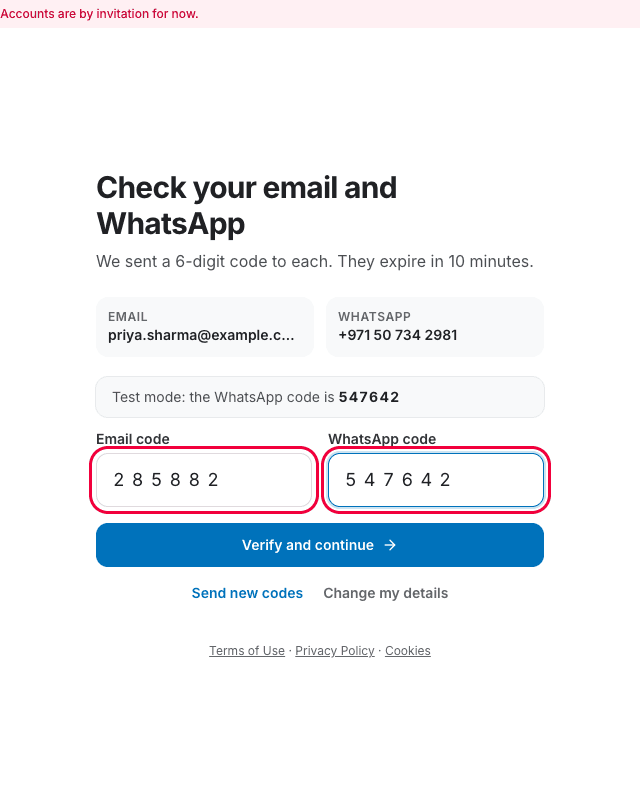
- Email code: open your inbox and find the email “123456 is your UAE Direct Apply code” (with your own 6 numbers). Type the code into Email code.
- WhatsApp code: during early access, it is shown on this screen, in the grey box that starts “Test mode: the WhatsApp code is”. Type it into WhatsApp code.
- Click Verify and continue.
Good to know
Codes work for 10 minutes. Too late? Click Send new codes. Made a typo in your details? Click Change my details.
4Your dashboard
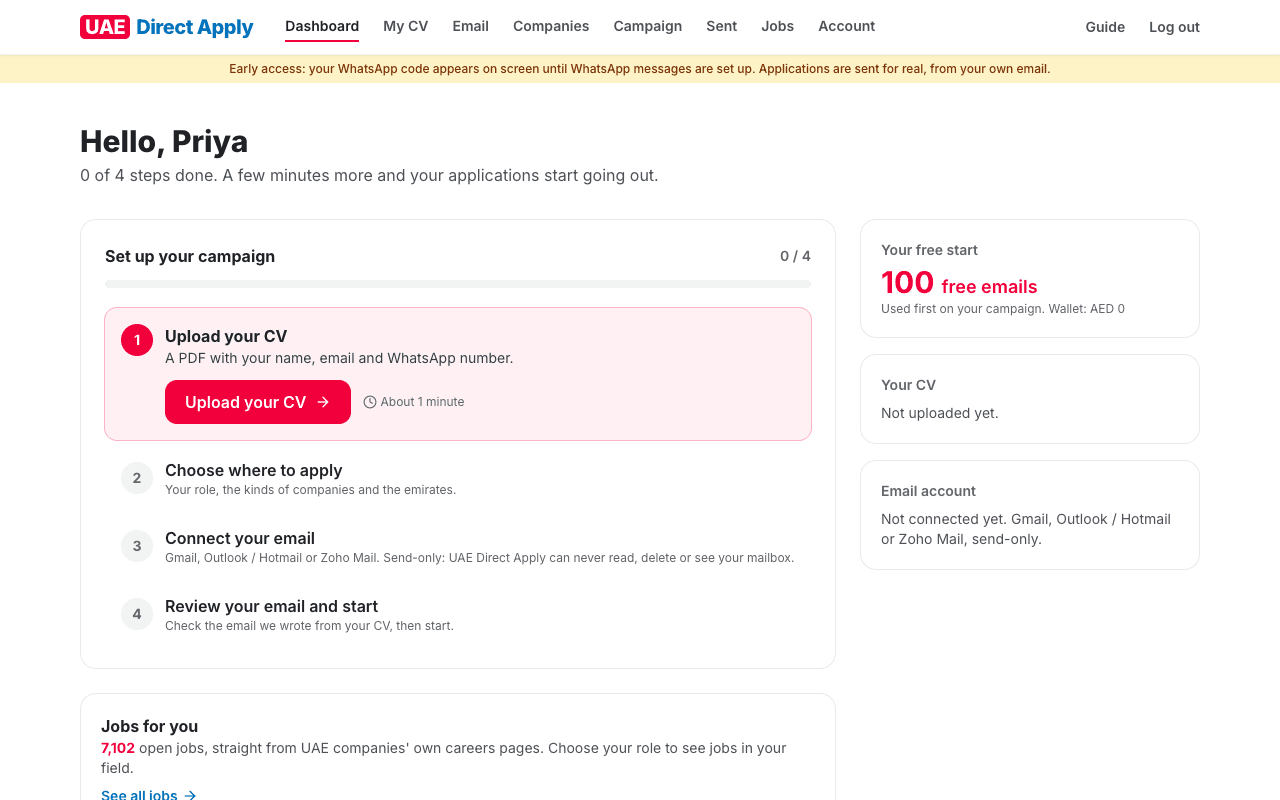
You're in. Your dashboard shows the 4 steps to your first campaign, in order: upload your CV, choose where to apply, connect your email, then review and start. Only the current step is open, and each one shows roughly how long it takes. On the right are your free emails, your CV and your email account.
Good to know
You can leave at any time and come back: log in at iamwilfred.com with your email, and your progress is kept.
5Upload your CV
- Click My CV in the menu (or Upload your CV on your dashboard).
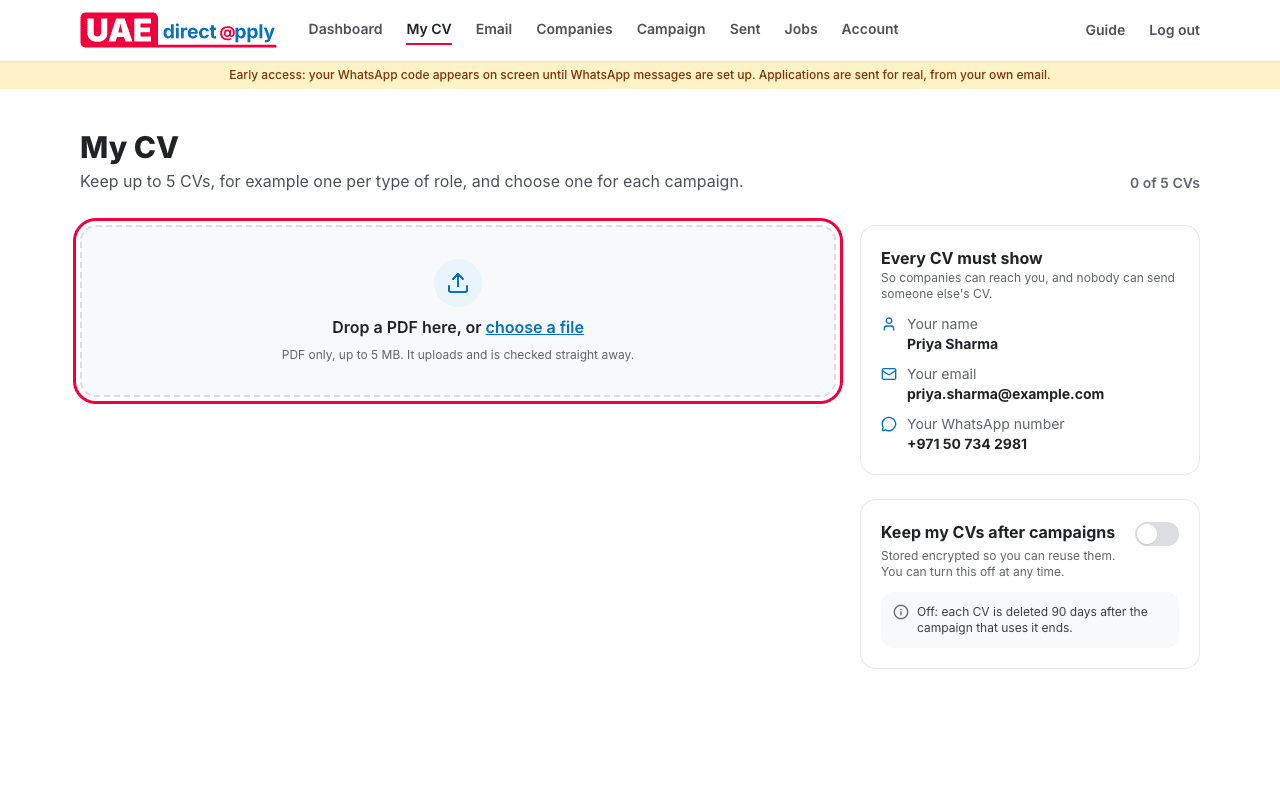
- Drag your CV (PDF) into the box, or click choose a file. It uploads and is checked straight away.
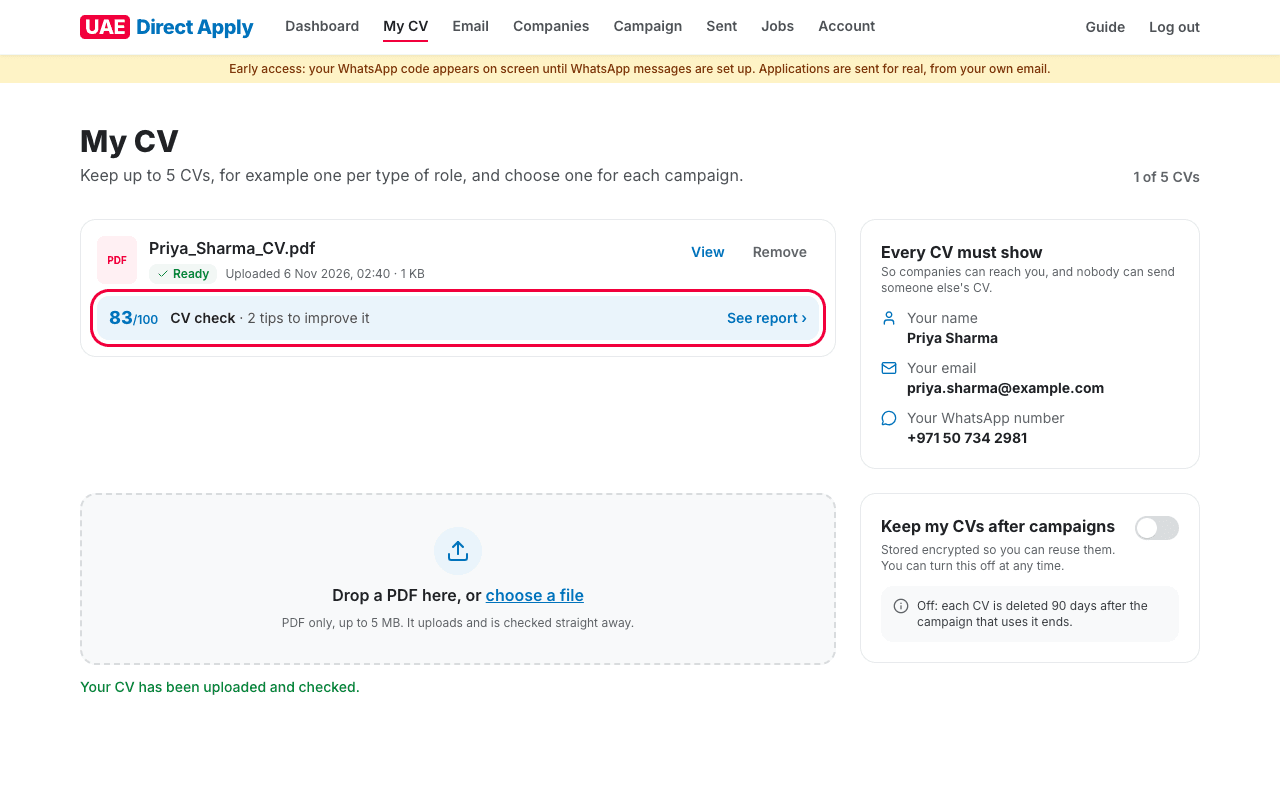
When it shows Ready, it can be used for your campaign. Underneath is your CV check: a score out of 100 and tips to improve it. Click See report to read them.
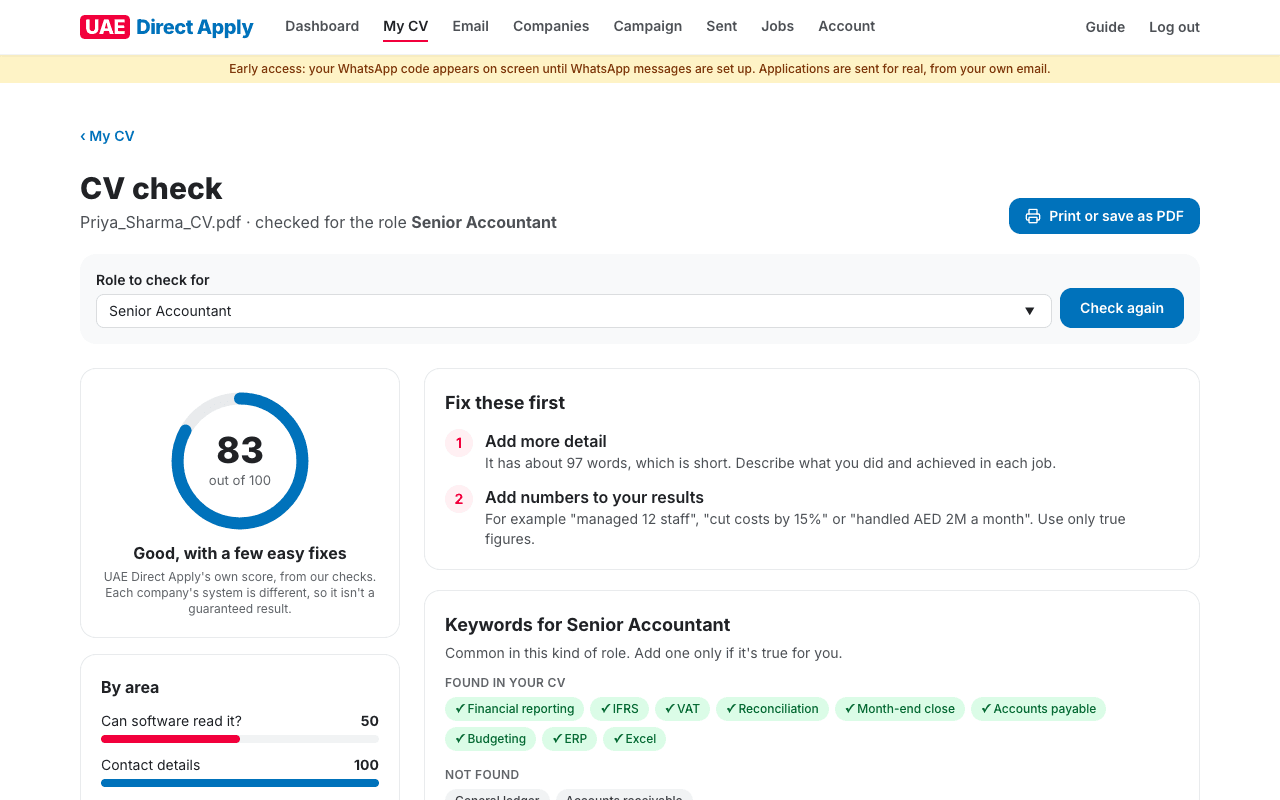
The report shows what to fix first, and the keywords companies look for in your role. You can print it or save it as a PDF.
Important
PDF only, up to 5 MB. The box on the right shows the name, email and WhatsApp number your CV must show.
Links in your CV: LinkedIn, GitHub, Behance and Dribbble are fine. Short links (like bit.ly) and links to files are refused. A link to any other website sends your CV to our team for a quick check: it shows Being checked, and we email you when it's ready.
Good to know
The CV check is our own score. It never stops you from using your CV.
You can keep up to 5 CVs, for example one per type of role. Without “Keep my CVs after campaigns”, a CV is deleted 90 days after the campaign that uses it ends.
6Connect your Gmail
- Click Email in the menu, then Connect next to Gmail.
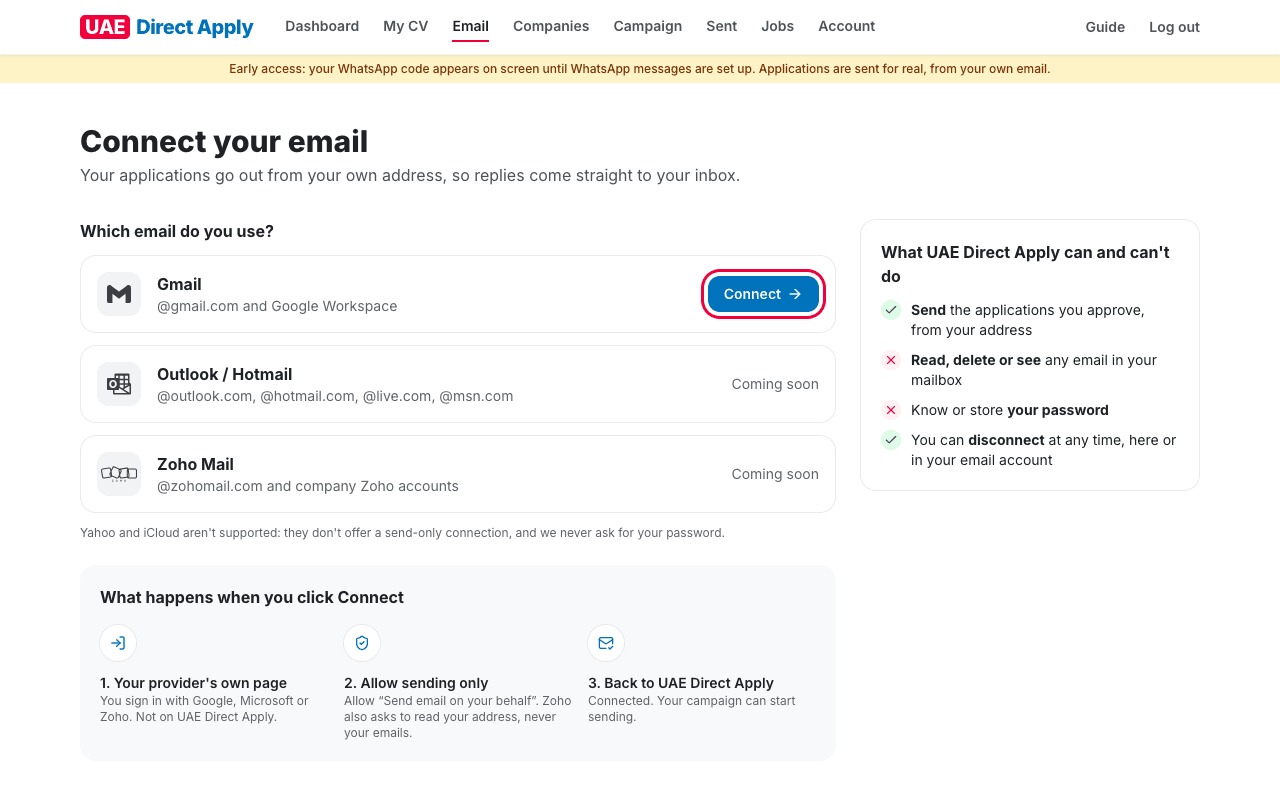
- Google opens. Choose the Gmail you want to apply from.
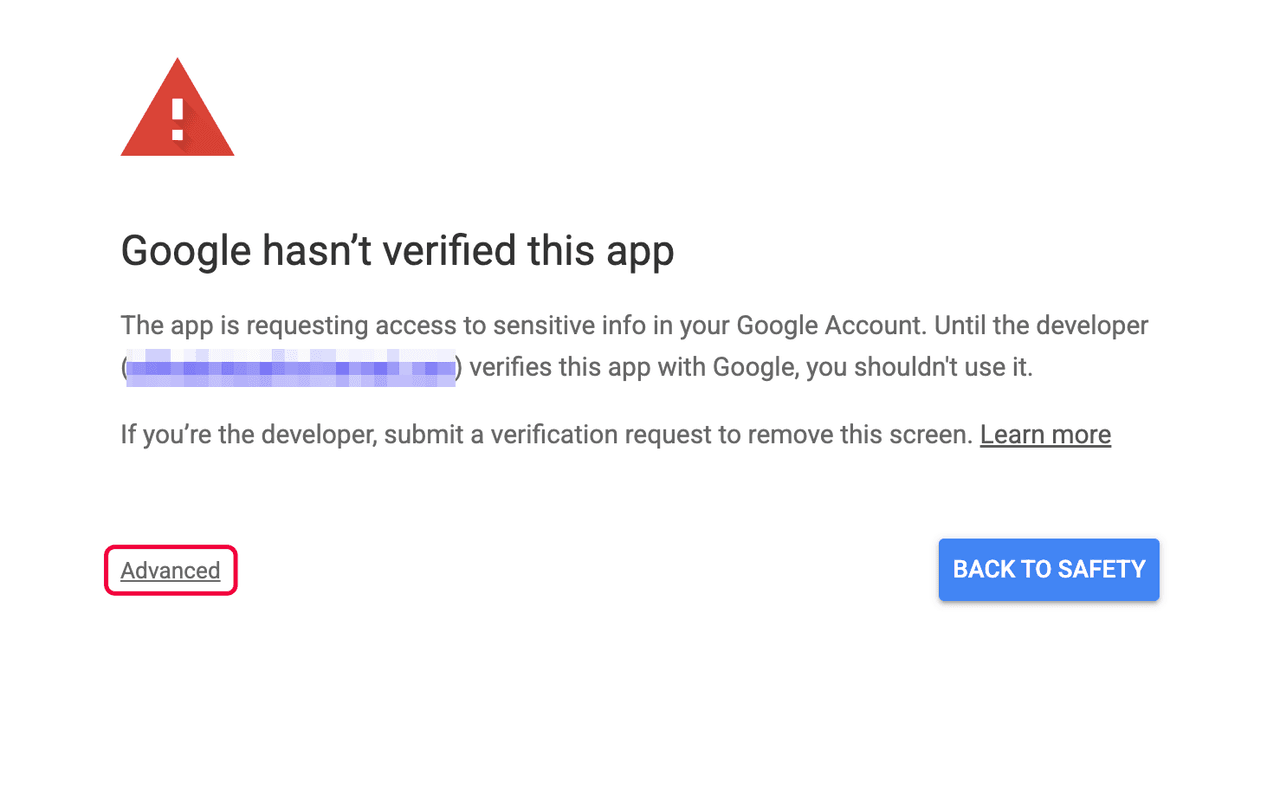
- Google shows “Google hasn't verified this app”. This is expected while UAE Direct Apply is new. Click Advanced.
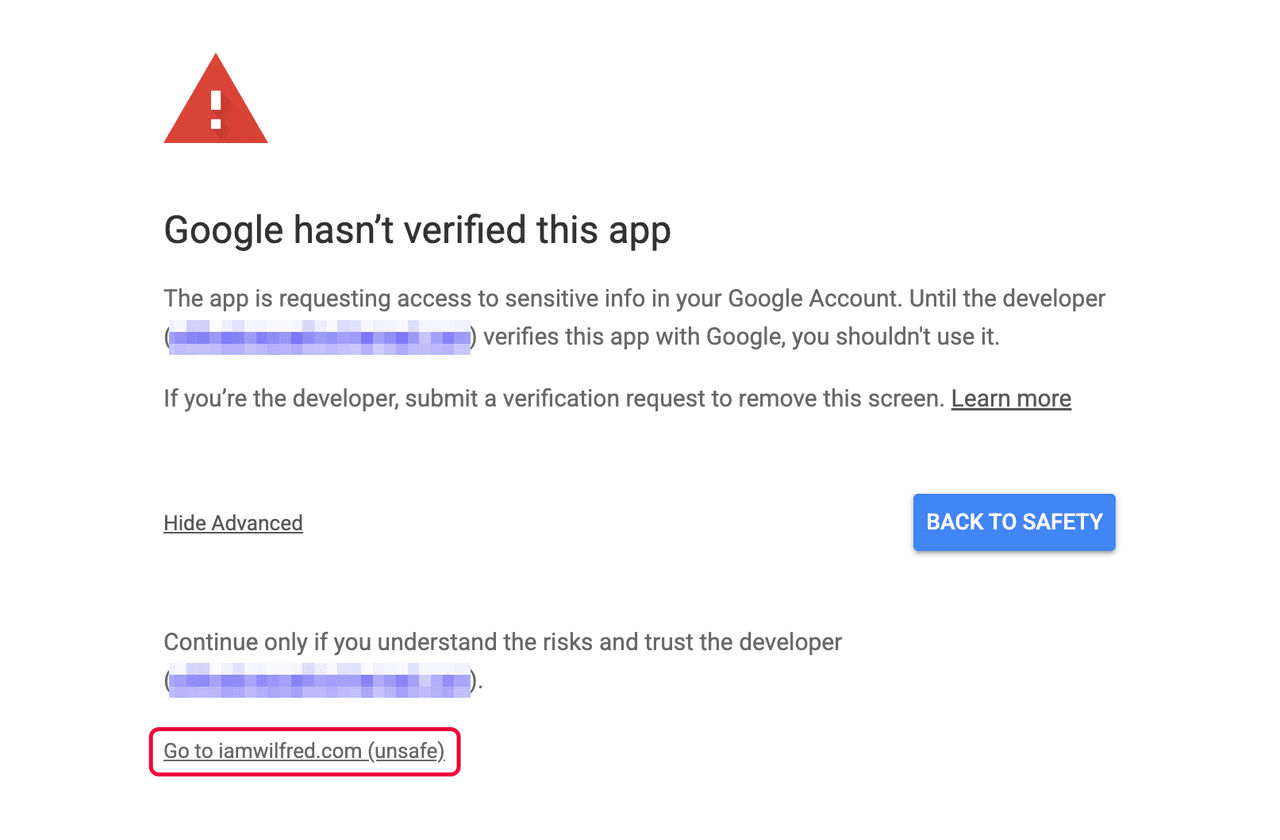
- Click the link Go to iamwilfred.com (unsafe). iamwilfred.com is our web address.
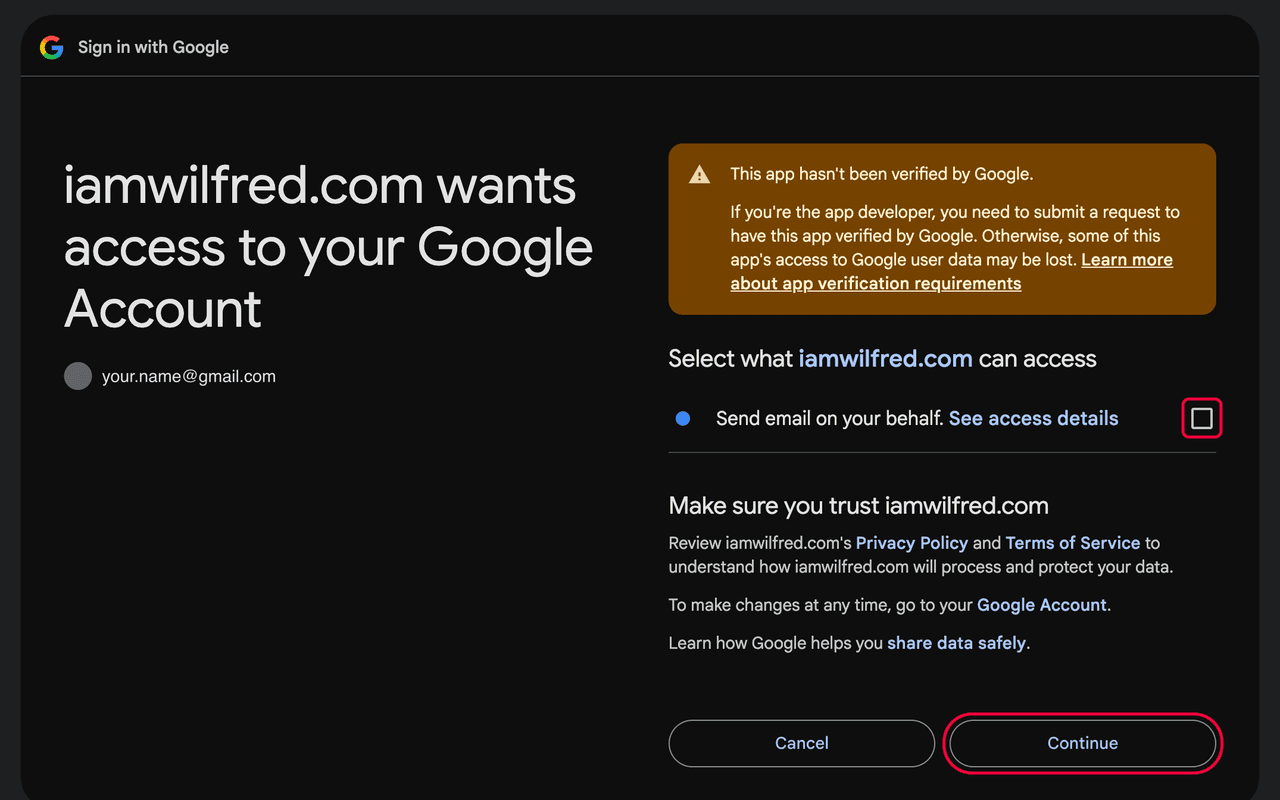
- On the next screen, tick the box next to “Send email on your behalf”, then click Continue.
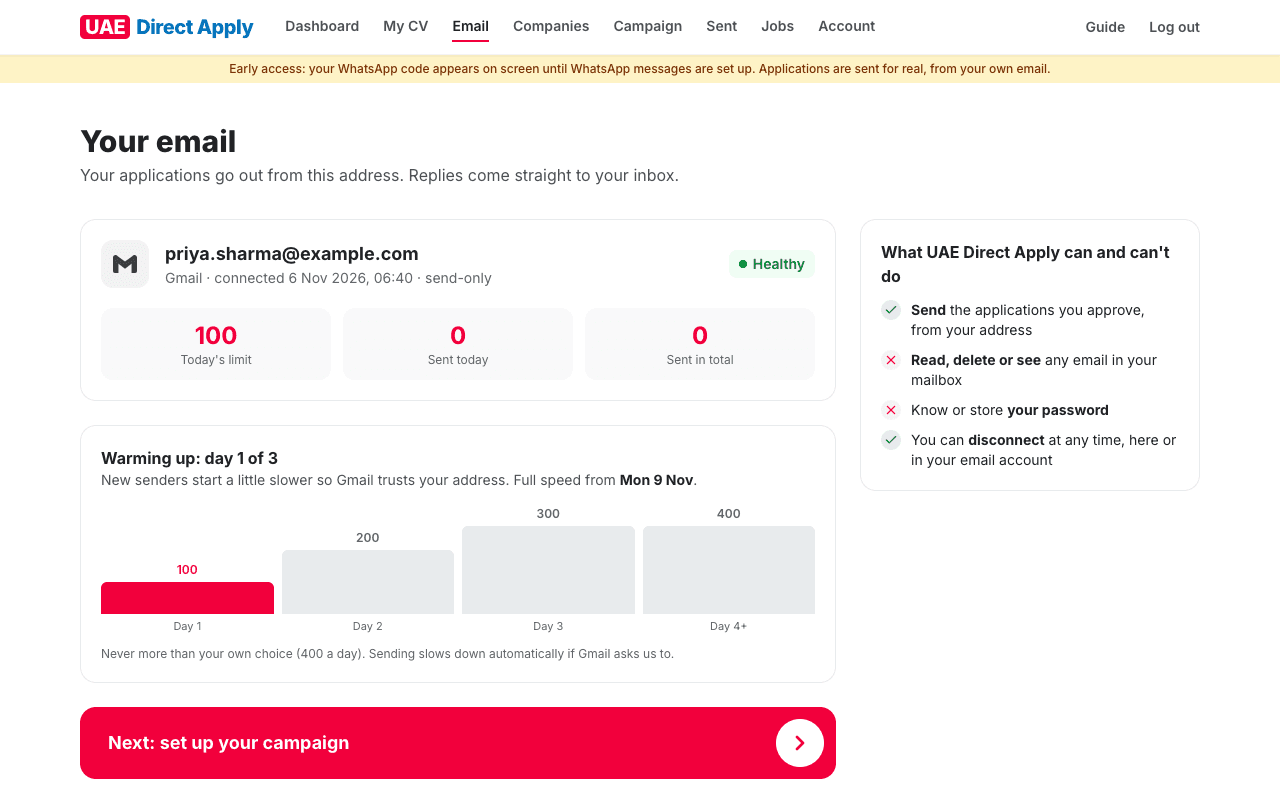
- You're back on UAE Direct Apply, with your Gmail connected and marked Healthy.
Important
Don't forget the tick box in step 5. Without it, Google doesn't give the permission and the connection fails.
Connect the Gmail you'll apply from: companies reply to it. One Gmail per account.
Don't disconnect while your campaign runs: it pauses until you connect again.
Good to know
The permission is send-only: UAE Direct Apply can never read, delete or see your emails, and never knows your password.
Warm-up: a new connection sends up to 100 emails on day 1, 200 on day 2, 300 on day 3 and up to 400 from day 4, so Gmail trusts your address.
Outlook / Hotmail and Zoho Mail are coming soon.
7Set up your campaign
Click Campaign in the menu. There are 7 short stages; the line at the top shows where you are, and Your campaign so far on the right shows your choices and how many companies match. Your choices are saved at each stage, so you can stop and come back.
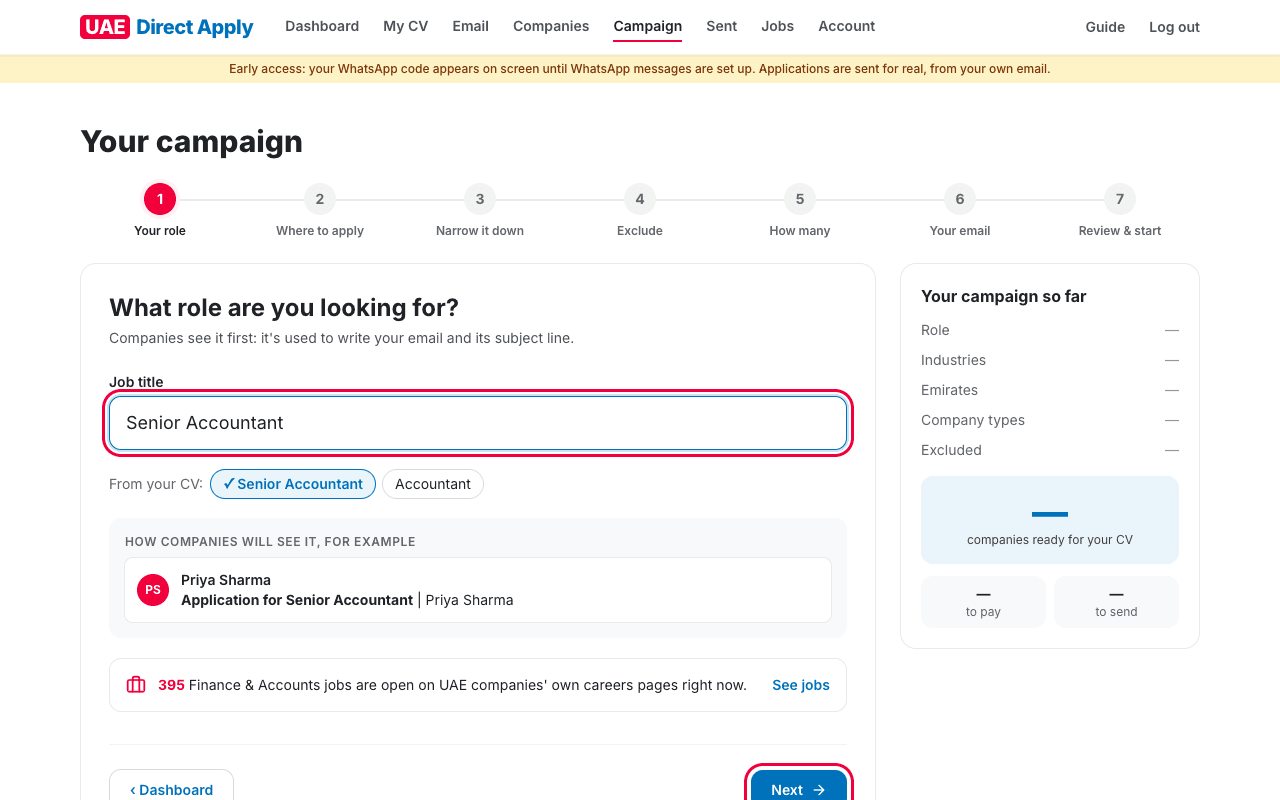
1. Your role
Type the job you want, or click one of the suggestions from your CV. Then click Next.
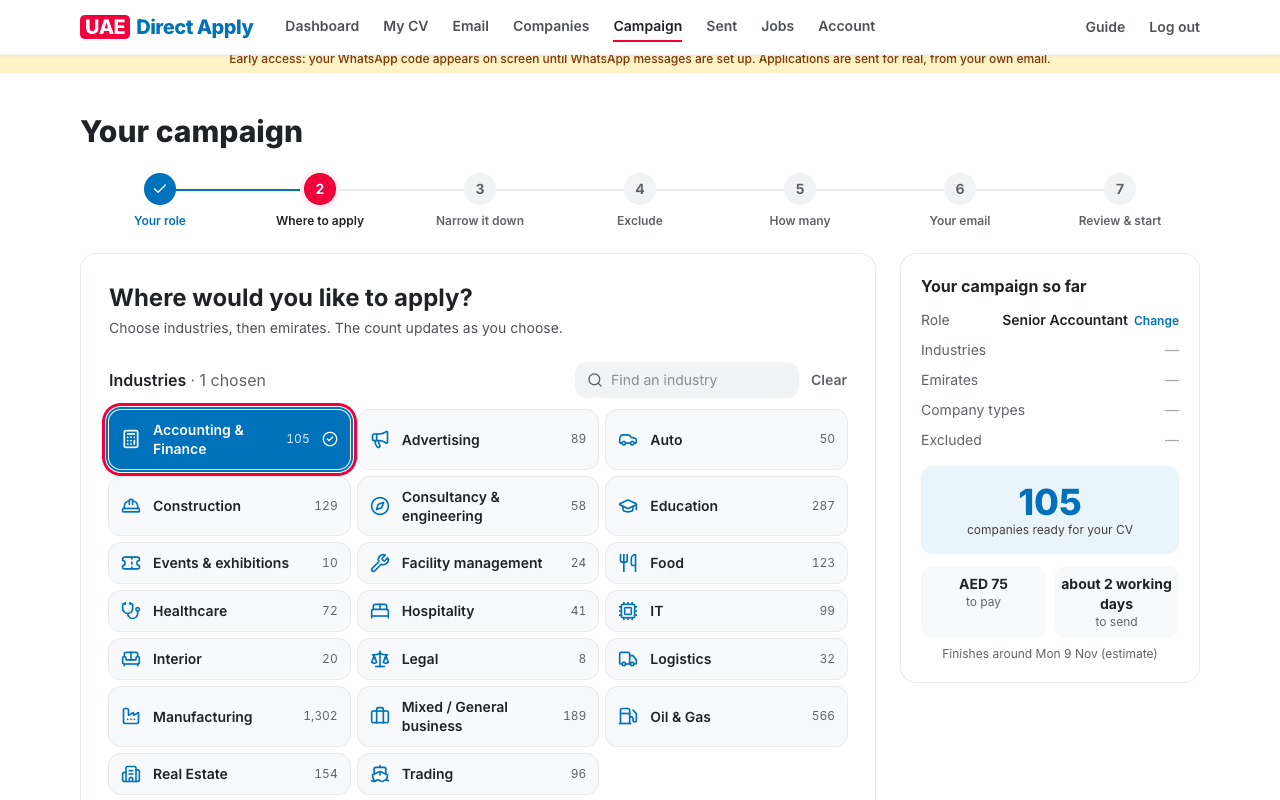
2. Where to apply
Click the industries you'd like to work in, then choose emirates on the map below (all of the UAE if you choose none). The count updates as you choose.
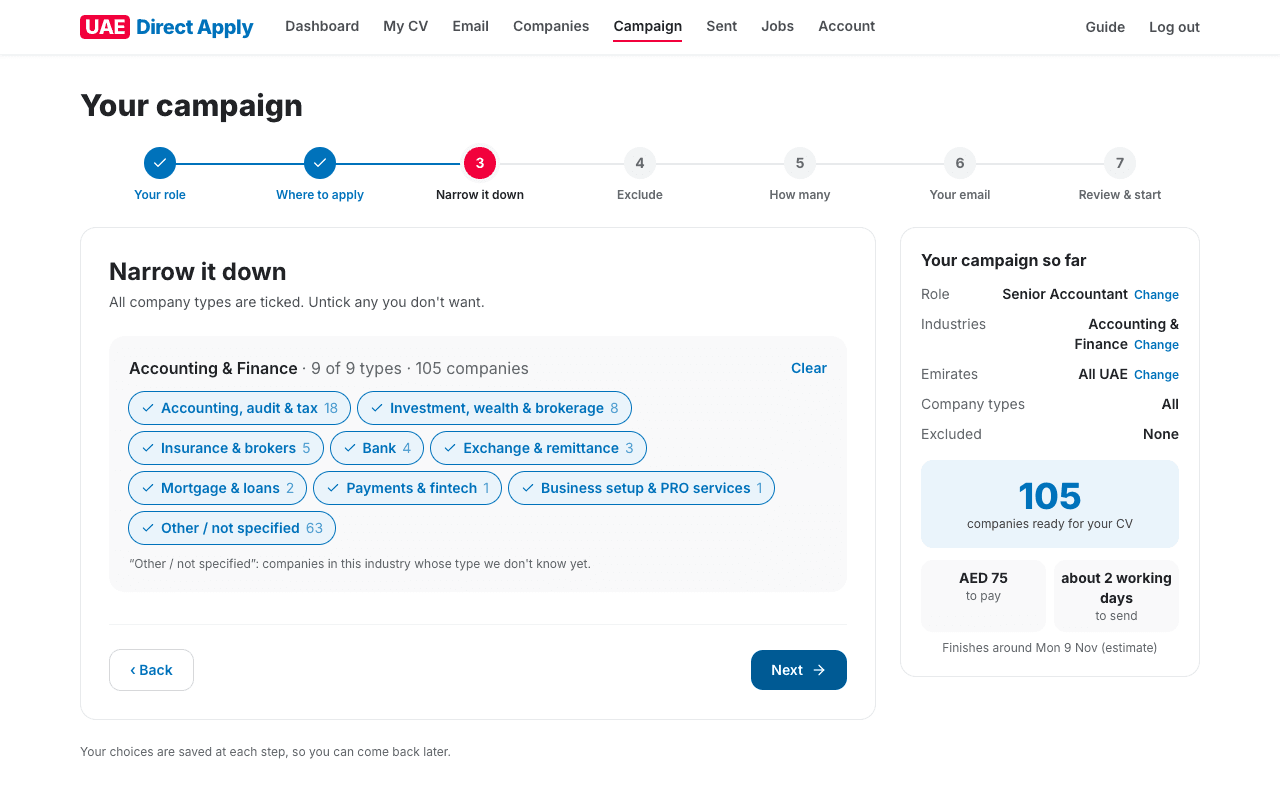
3. Narrow it down
Every type of company is ticked. Untick any you don't want.
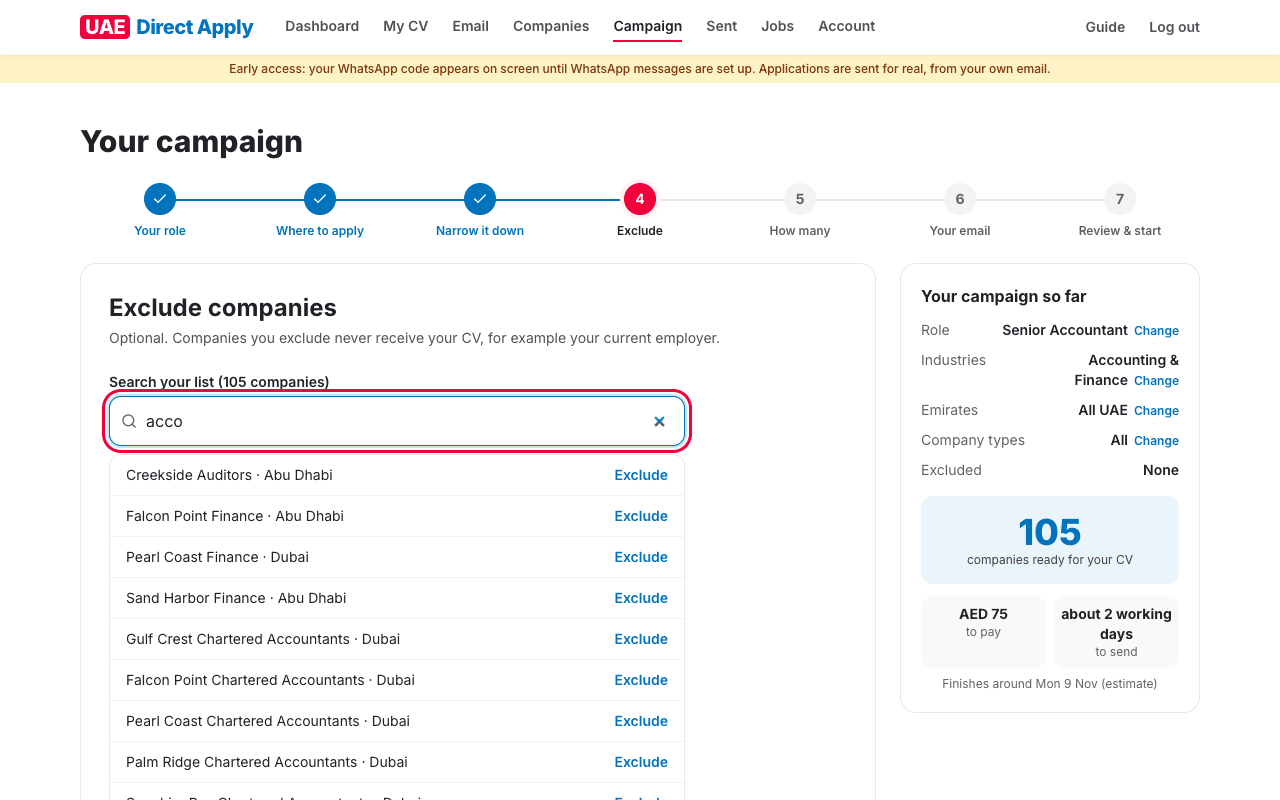
4. Exclude companies
Optional. Search your list and click Exclude for any company that shouldn't get your CV, such as your current employer.
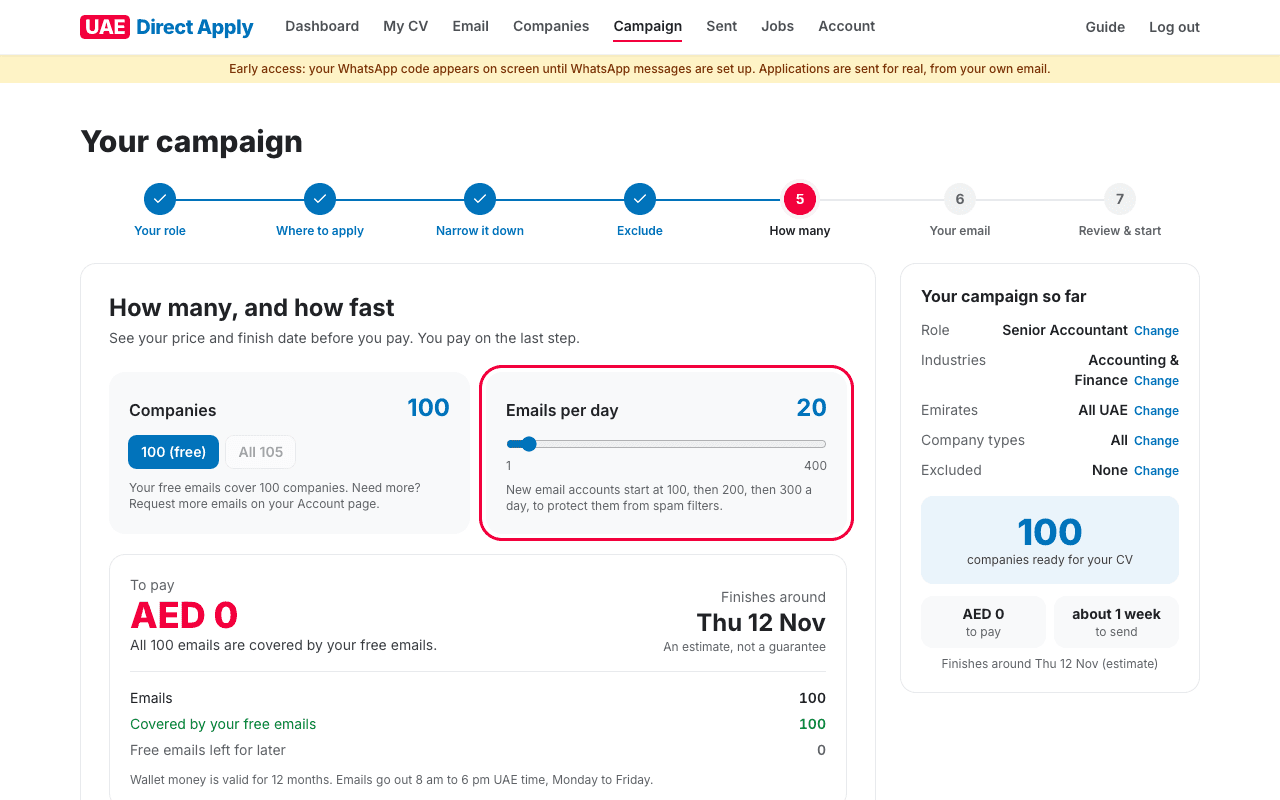
5. How many, and how fast
Choose how many companies, and how many emails a day (up to 400). You see what your free emails cover and the estimated finish date.
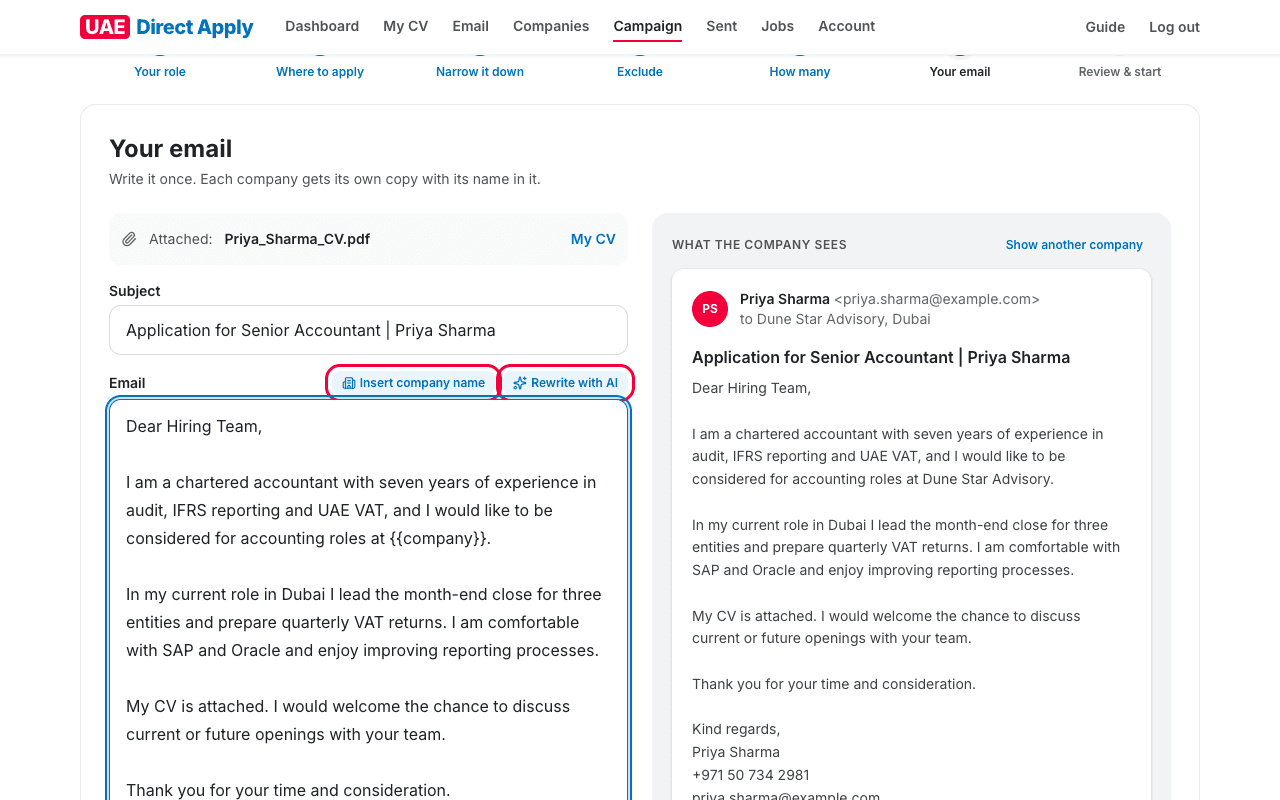
6. Your email
Write your email once: each company gets its own copy with its name in it. Click Write my email with AI for a first draft from your CV, then edit it. Insert company name adds the company's name where you want it. The right side shows exactly what a company sees, with your CV attached.
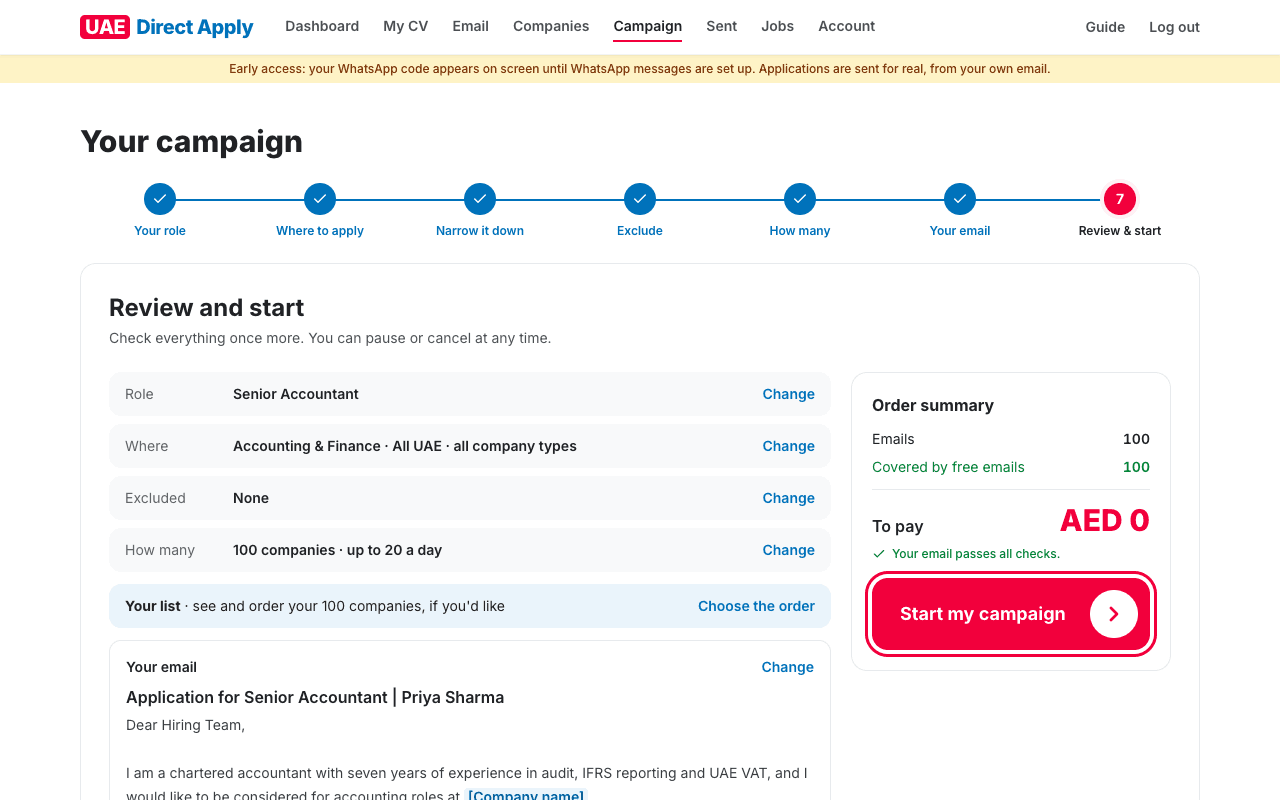
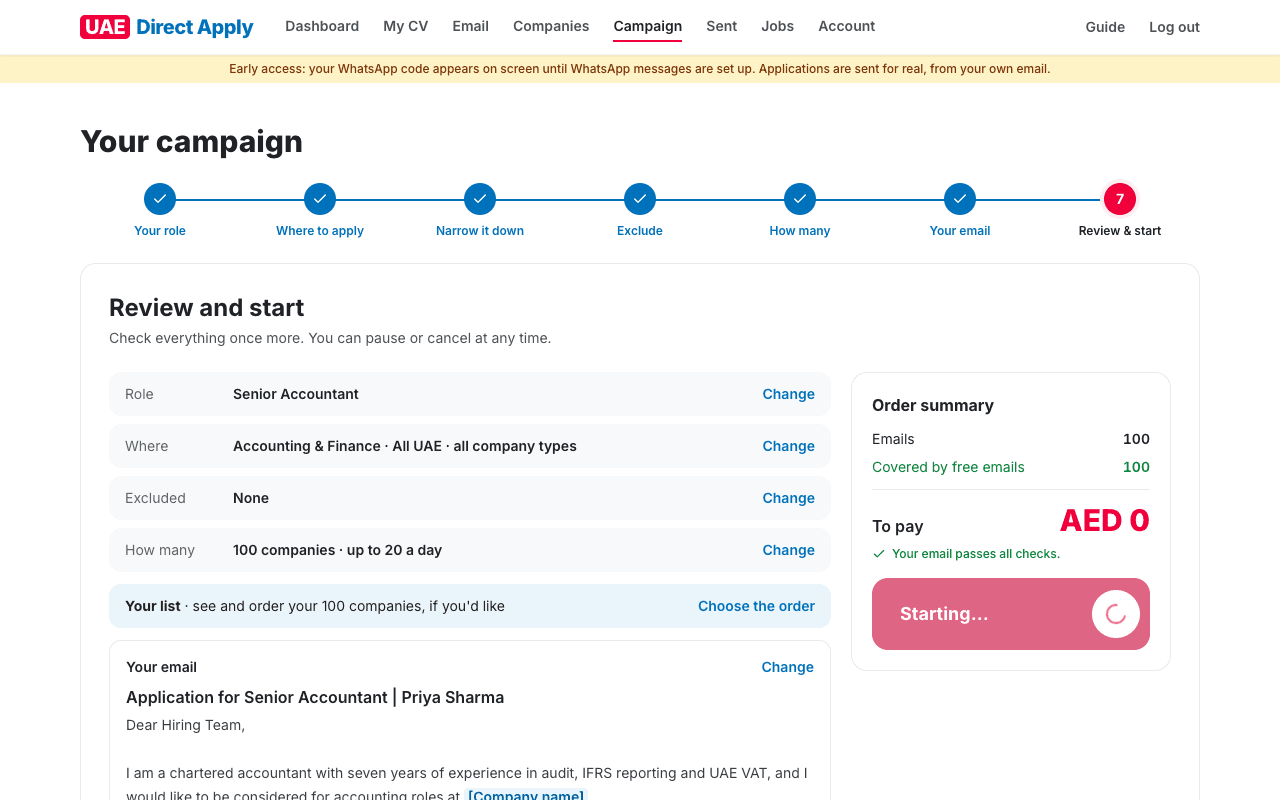
7. Review and start
Check everything once more (each part has Change). Click Preview for a sample company to see a finished email, then Start my campaign.
Important
Each company receives your application once only, so choose carefully. You'll never be sent to the same company twice.
Your free emails cover a set number of companies (shown as “free” in stage 5). Need more? See Request more emails.
Good to know
Your email is checked automatically before you can start; anything to fix is shown on the review.
For a campaign of up to 100 companies, you can also choose the order they're sent in (“Choose the order” on the review).
8After you press Start
Your campaign is submitted. Your first campaign is checked by our team before anything is sent. This usually takes less than a day, and we email you when it's approved (or if something needs changing).
Good to know
Emails go out Monday to Friday, 8 am to 6 pm UAE time, one by one at random times, so each one looks personal.
Replies come straight to your Gmail inbox, not to UAE Direct Apply.
9While your campaign runs
The Campaign page shows your progress, what's sent today, replies and interviews, and today's sending times. Pause sending stops it at any time; Resume sending carries on.
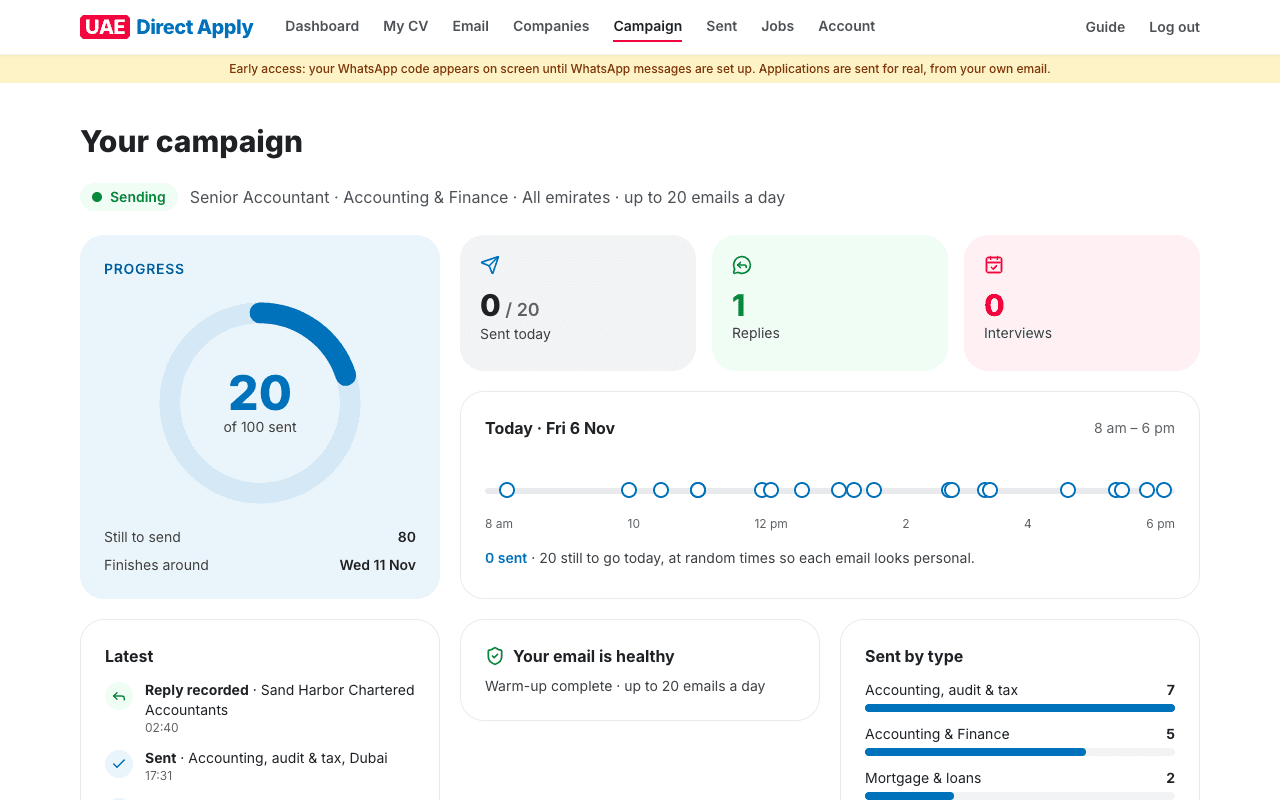
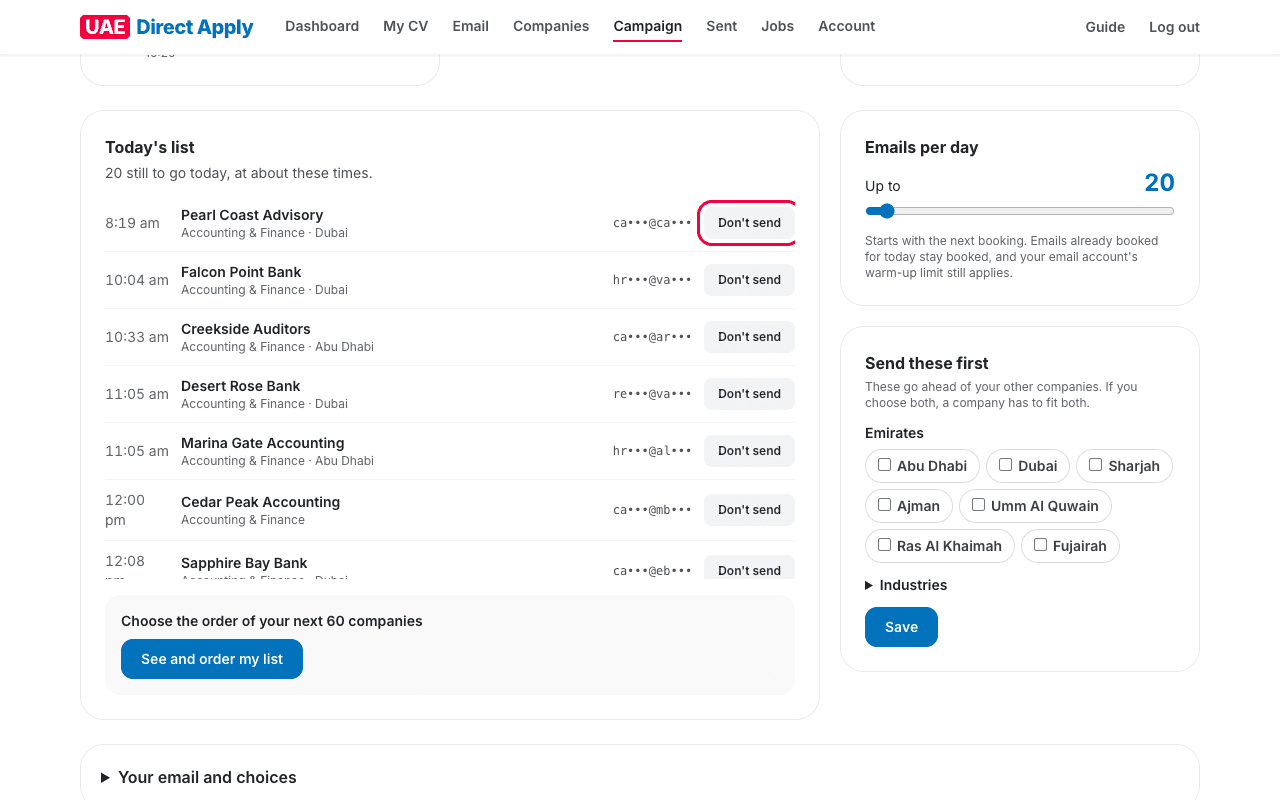
Further down you can steer it:
- Today's list: the companies booked for today, with rough times. Don't send removes one from your campaign.
- Emails per day: change how many go out a day, from the next booking.
- Send these first: choose emirates or industries to go ahead of the rest.
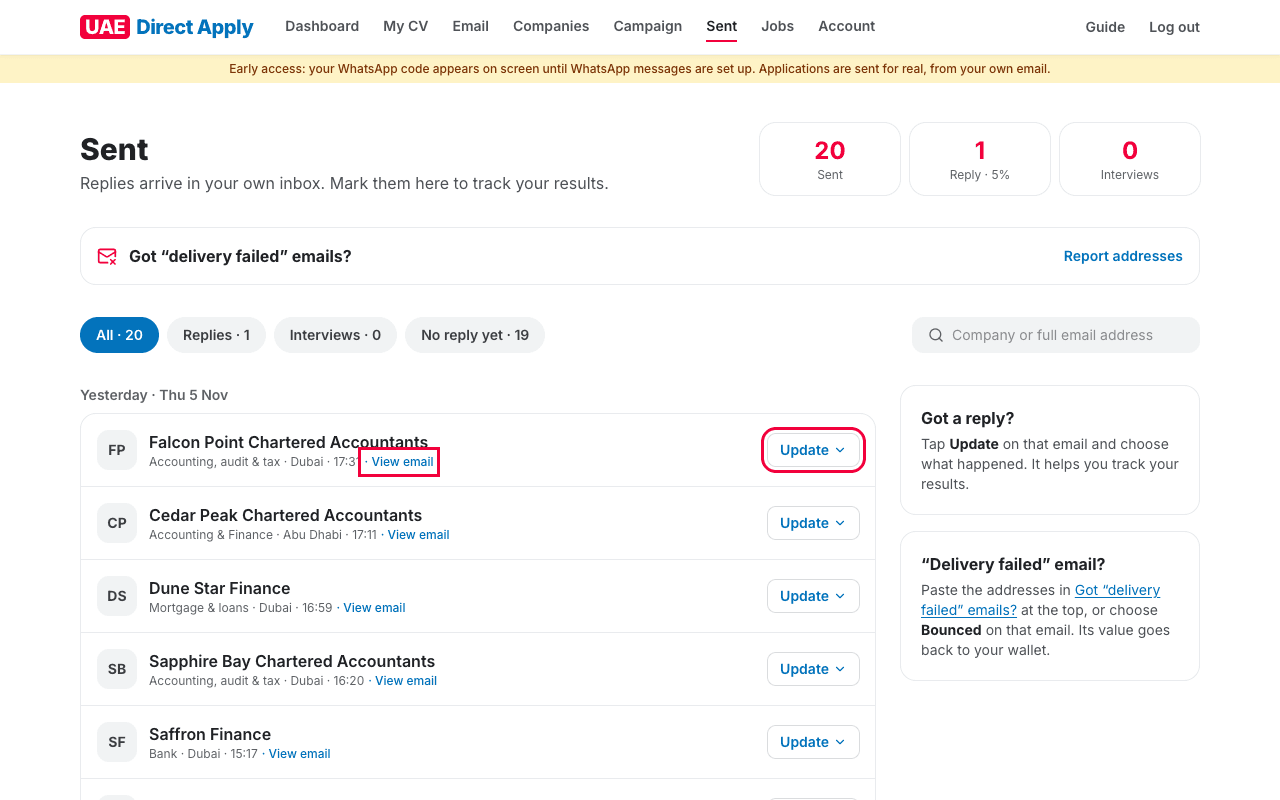
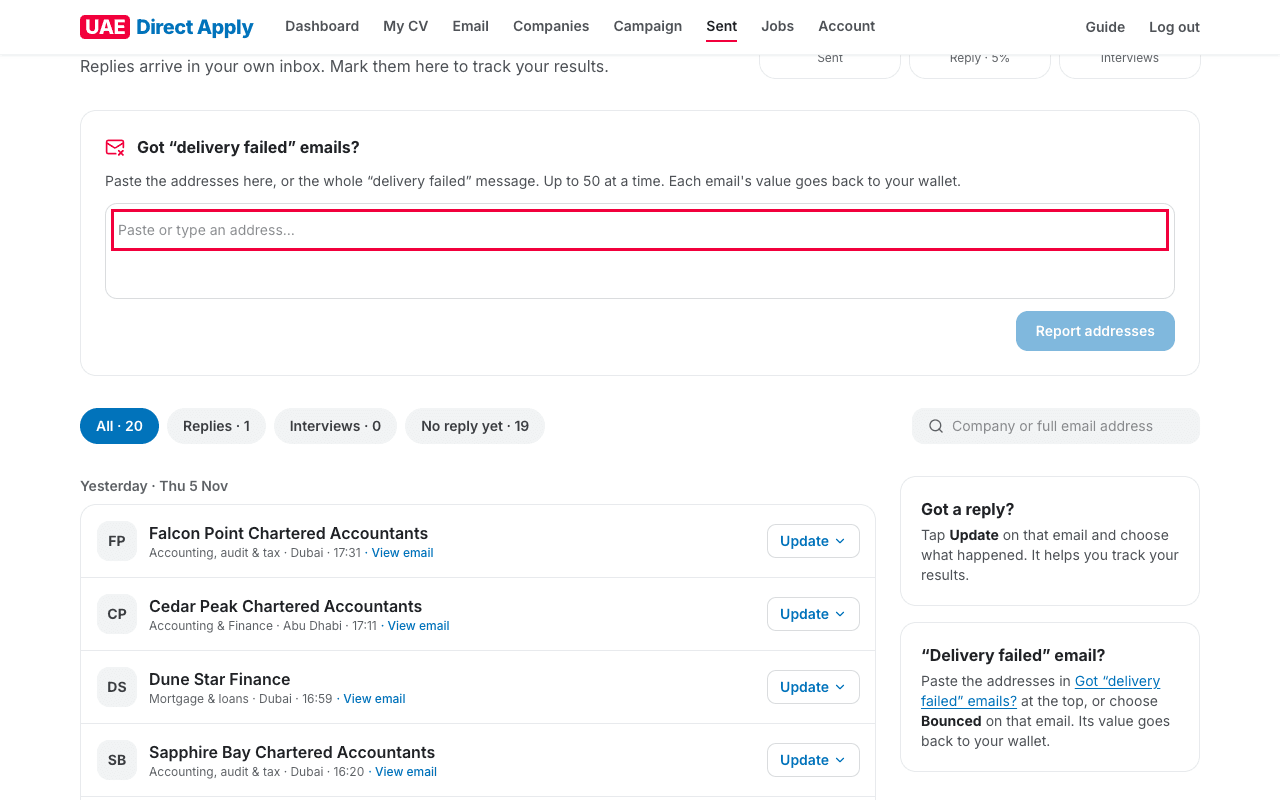
The Sent page lists every email sent, by day. Click View email to read one. When a company replies, click Update on that email and choose Got a reply or Got an interview: it keeps your results up to date.
Got a “delivery failed” email in your Gmail? Click Got “delivery failed” emails? at the top of Sent and paste the addresses (or the whole message). Each matching email's value goes back to your wallet.
Important
Keep your Gmail connected until your campaign finishes.
Report a “delivery failed” email within 30 days of sending; up to 50 addresses at a time.
Good to know
Every Friday evening you get a short progress email. You can switch it off on your Account page.
Companies see a small footer to pause or stop applications; that's normal and protects your reputation.
10Request more emails
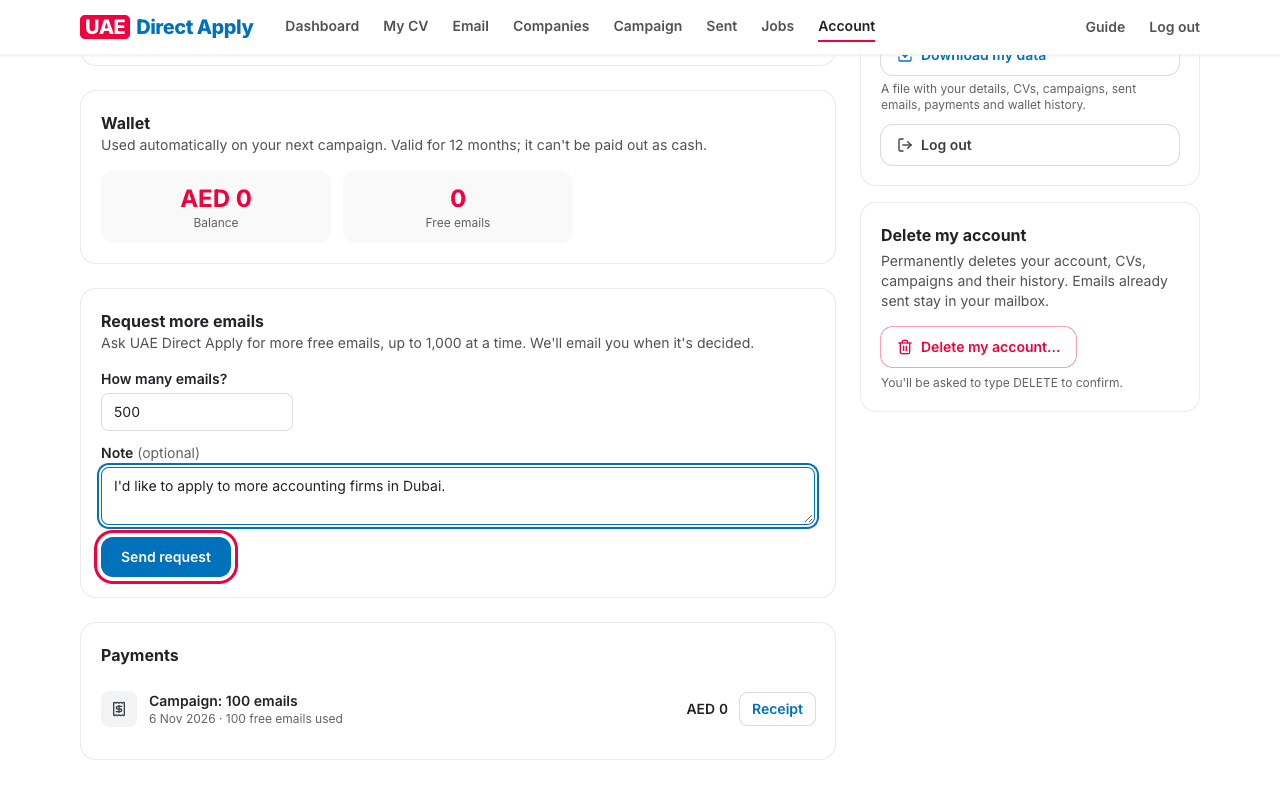
- Click Account in the menu and go to Request more emails.
- Type how many emails you'd like (up to 1,000) and, if you like, a short note.
- Click Send request.
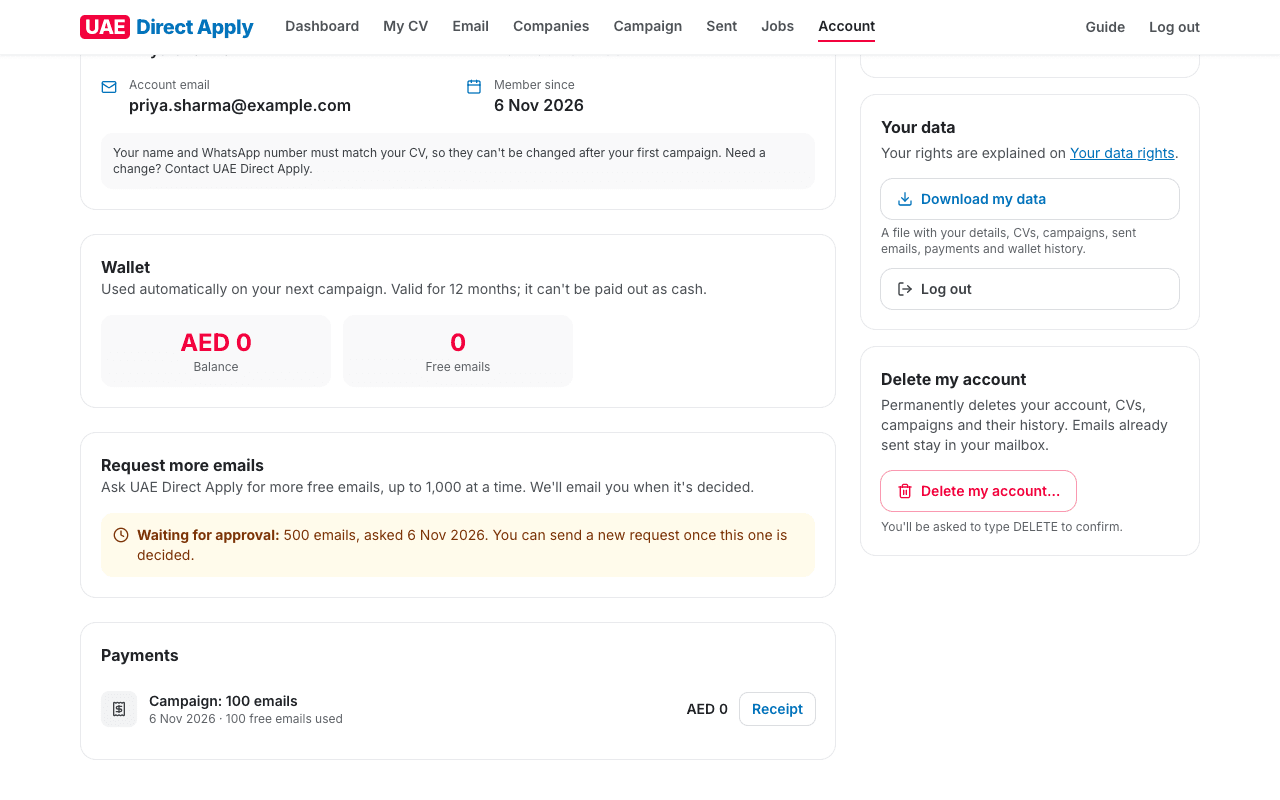
Your request shows as Waiting for approval. We email you when it's decided.
Important
Up to 1,000 emails per request, and one request at a time: you can send a new one once the last is decided.
Good to know
Approved emails are added to your free emails (shown on your Account page and dashboard) and are used automatically when you start your next campaign.
11Problems and answers
- It says I'm not invited, or there's no account for my email.
- Your invite is for one exact email address. Use the address the invite was sent to (with Google too). Need a different address? Reply to your invite email.
- My invite link doesn't work.
- Each link works once and until the date in the email. If you already created your account, just log in. Otherwise, reply to your invite email for a new link.
- I didn't get the email code.
- Look in Spam or Promotions for an email from no-reply@iamwilfred.com. Codes work for 10 minutes; click Send new codes for fresh ones.
- My CV was refused.
- The message says why. Usually the name, email or WhatsApp number in the CV doesn't match your account, or the CV has a short link (like bit.ly). Fix the PDF and upload it again.
- My CV says “Being checked”.
- It has a link to a website our team checks first. This usually takes less than a day, and we email you when it's ready.
- Google says the app isn't verified.
- That's expected while UAE Direct Apply is new. Click Advanced, then “Go to iamwilfred.com (unsafe)”, and tick the “Send email on your behalf” box.
- My campaign is paused.
- If your Gmail was disconnected, connect it again on the Email page and your campaign carries on by itself. If you paused it, click Resume sending.
- Nothing was sent today.
- Emails go out Monday to Friday, 8 am to 6 pm UAE time, and your first campaign waits for our team's check first.
- Can a company get my CV twice?
- No. Each company receives your application once only, even across campaigns.
- How do I log in again?
- Go to iamwilfred.com, click Log in, and use your email (a code is emailed to you) or Continue with Google with the same Gmail.
Still stuck? Reply to your invite email, or see the FAQ.